Showing posts with label Tip trik photoshop. Show all posts

Wednesday, 26 November 2008

Setting Type Around a Circle

The problem with Bottom Circles... Many times it's difficult getting the type to work on the bottom of a circle। This takes a little patience and careful dexterity. Let's start with the type already set along the circle (as described previously) at the top of the circle. You should now copy that layer and then hide it. This preserves all your hard work on the top circle, which we'll be using again later.

Text at TOP of circle

Take that Direct Select tool (sometimes called "path selection tool") and
* hover at the origin point until you see the cursor with the black arrow.
* Click and drag the type down.
* Don't release the mouse until the text is where you want it.
* Go ahead। Move it around. You'll see you can get all kinds of results just in the way you drag it.


If a portion of the type goes beyond an anchor, you'll need to move that anchor. (See that dot? That's it!)
* Release the mouse and move the cursor to the END of the type.
* Drag away from the type and you'll see the rest of it appear.

Now, you have type at the bottom of a circle.

At this point you can select the type and key in the legend for the bottom of your circle. This leaves us with a layer for the type on the top, and a layer with the type on the bottom.

Fine-tuning Circular Type & the layout

Your bottom type may have become scruntched. (Slang term for "squeezed together.") So you'll need to select it with the Text Tool, and on the Character Palette, adjust the letter spacing or Tracking.

I've had to go all the way to 100 because the slab serifs in the Rockwell font are very unforgiving. With some more rounded fonts you may not have as much of a problem.
* Tip: Tracking adjusts Letter Spacing across a string of characters... not to be confused with Kerning which only affects the space between two characters!

Tracking to free the type

To finish, you can use the Direct Select tool once again to shift, stretch and adjust the circles to fit your needs. In this simple example, I've had to slightly stretch the circle to get a better visual fit with the photo. Here, I'm adjusting the left anchor of the circle -- pulling it out for a better fit.

I use the "nudge" technique... .
* Click once on an anchor point with the Direct Select pointer
* Tap Arrow keys on the keyboard "Nudge" the anchor in the direction desired
* Remember to count your taps on the arrow key. Use the same number of arrow-key-taps for the right side.

adjusting the type

Note that the path and anchors will move, leaving the type where it was. If you'll pause at the destination, the type will snap into position.

Wednesday, 30 January 2008

Use Photoshop Match Color to match colors of two files


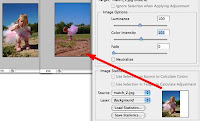
The Match color command in Photoshop is probably one of the more misleading and seldom used functions we see. It's actually quite simple, and can go a long way to changing images. Photoshop attempts to evaluate and then match the general color and contrast of one image, and then apply it to another. Actually, it's a very powerful function and can work on photos with a lot more difference than this one. It also has a lot of potential as an "artistic" tool, because changing the settings can result in some spectacular images.


Well, it's not always perfect. In fact, it's almost NEVER perfect. Adobe and the book authors make you think it's perfect so you'll buy the product. But it's been my experience that you really have to tweak it a bit to get it working properly.


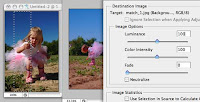
You can help along by choosing sections of the image most representative and try again...
Well, the second try is not quite getting it either. We selected a good cross section of the image, but as you can see the little dress, as well as the ground area went way too much red -- while the sky STILL didn't make it to the intensity of the other shot.
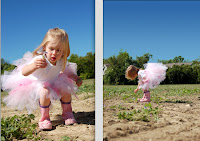
We played with the settings and no matter what we tried, the color could not be matched. Why? This kind of shot is almost impossible to match. Both photographs are nearly perfect, but they're different because of the metering system in the camera. By taking a reading of the intense, close up subject, the shot was captured with a misleading richness. So, when trying to match it in the second shot, which is probably the more accurate of the two, Photoshop wants to enrich everything, where only the sky is necessary.


Yes, there must be an easier way.
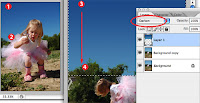
Grab the Eyedropper, (tap "i") and sample the rich sky at the very top (1), and then hit "x" to reverse the foreground and background colors -- sample again at the very bottom (2). This 'loads' the color palette.
Now make a selection in your image to cover just the area which would be the "sky" ... you'll need to include some of the trees in this scenario -- or else create a good, accurate selection of those trees to mask only the sky with a selection. I used a regular rectangle marquee because a blending mode will knock out the rest...
Now set the Gradient tool (tap "g") and make sure the gradient settings are for "Foreground to Background colors" -- which you'll find in the Gradient tool options bar. Then drag from the top to the very bottom (#3 to #4) and presto, a great sky.


Here you see the photos are now very much matched. By setting the blending mode to "Darken" I avoided having to outline the trees. The layer was "darkening" only lighter colors -- which was the sky and not the trees. The child, dress, dirt and overall luminosity of the two are nearly identical. I did go in and lighten just a slight amount using Levels -- simply because I feared the richness of the sky would look artificial.